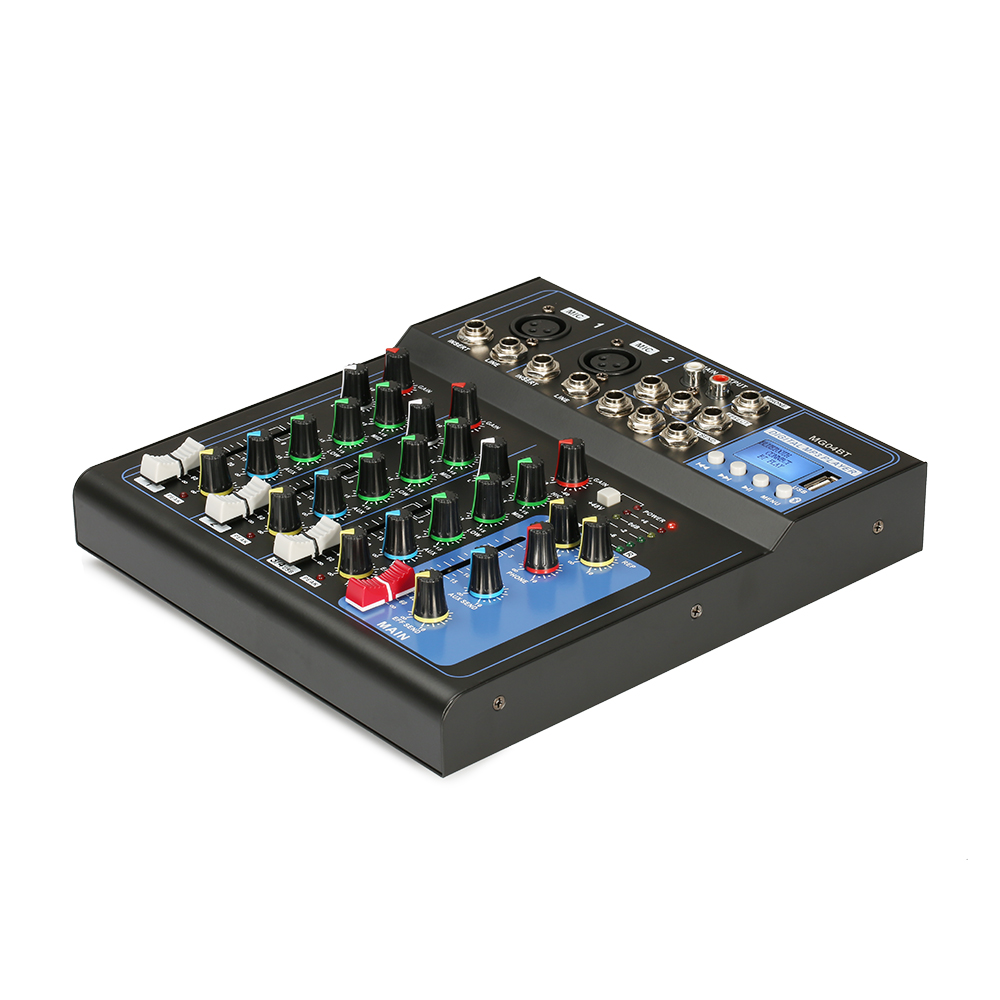
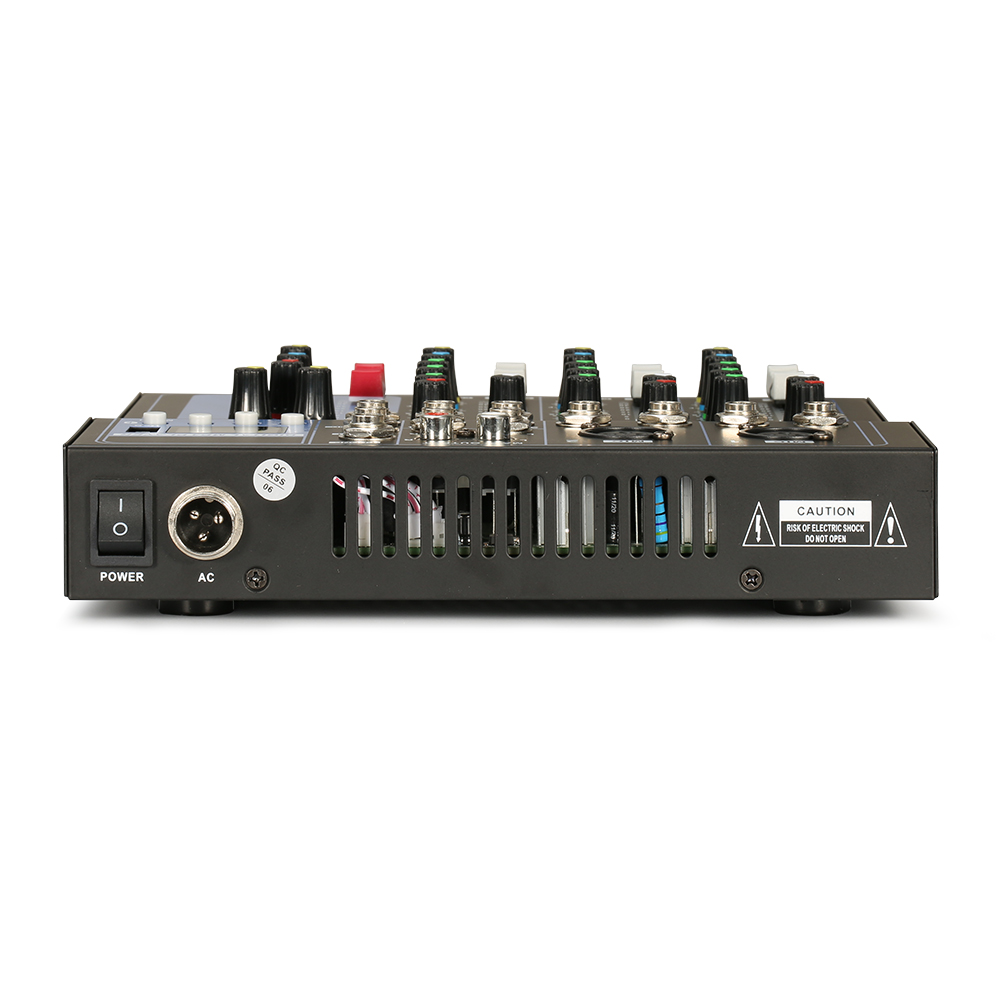
1. Basics & Connections
1. Q: What is a "Channel Strip"?
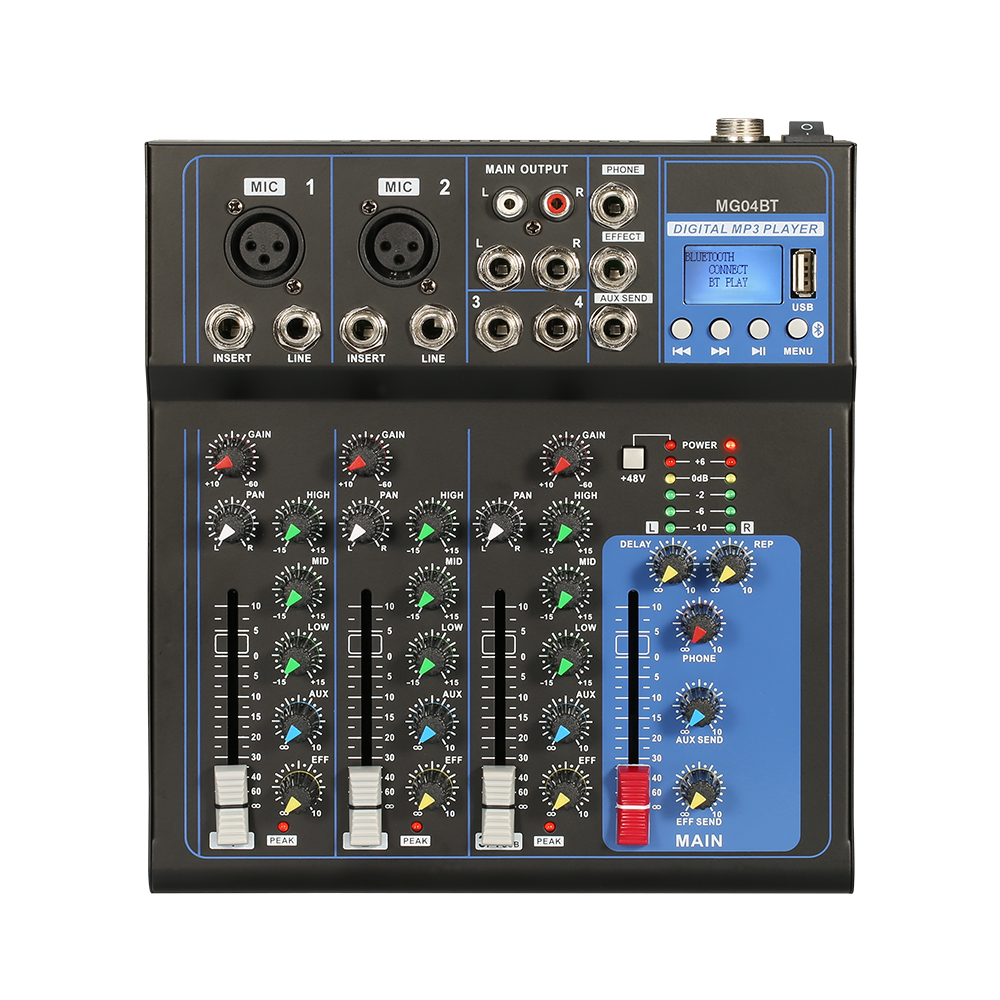
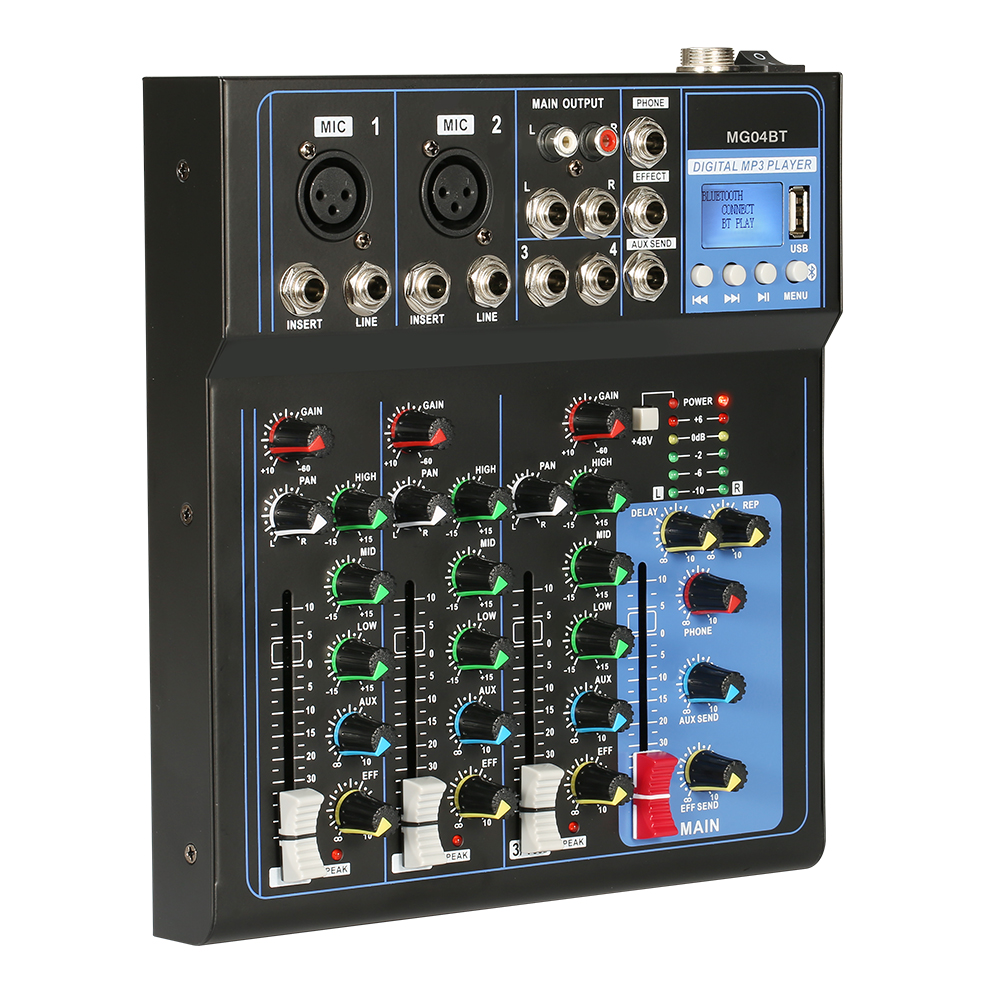
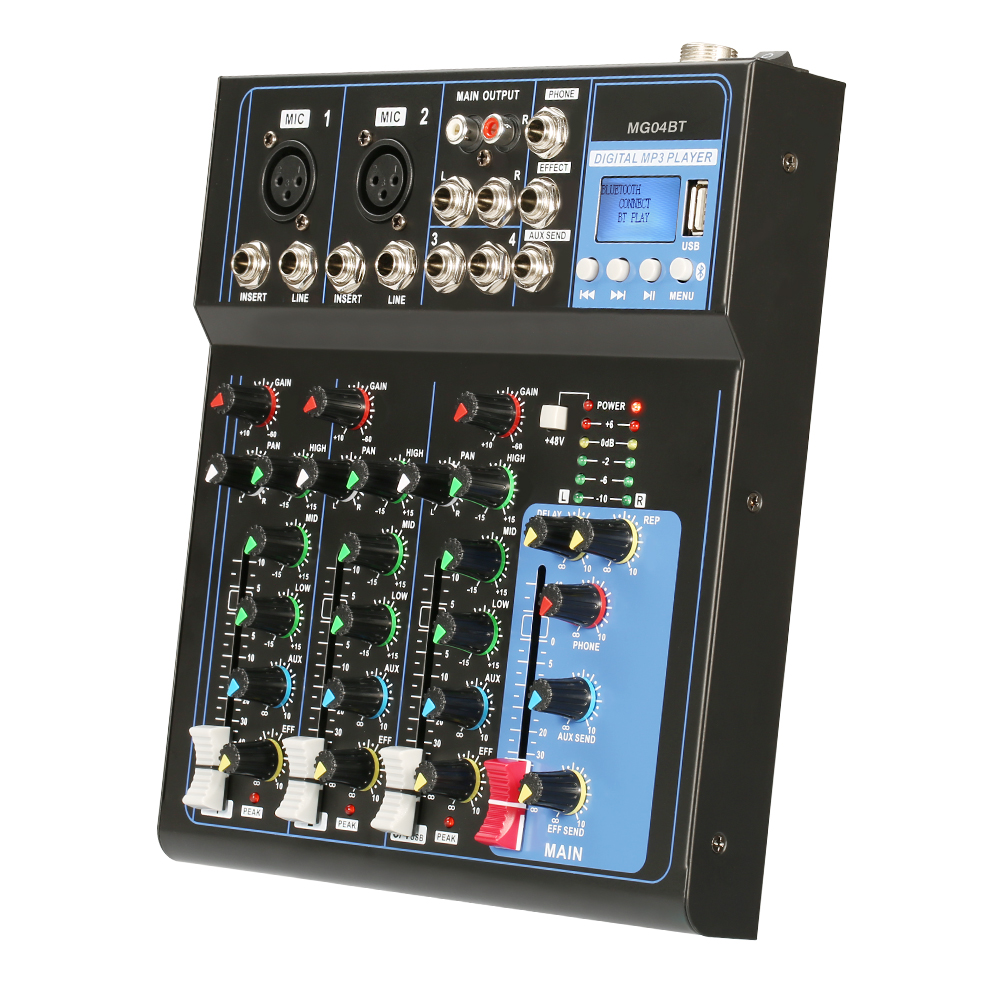
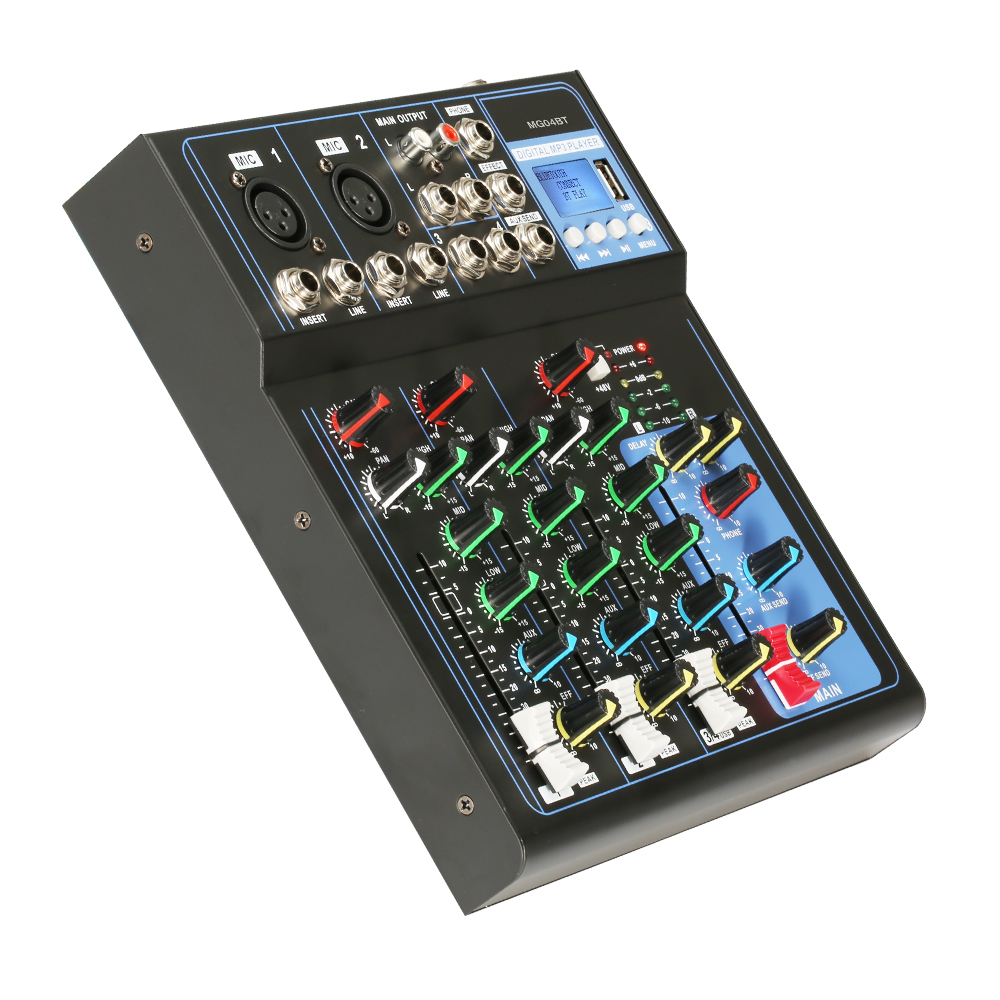
A: A channel strip refers to the column of knobs, buttons, and faders on a mixing console that controls a single input source. A typical mono channel strip includes a Gain knob, EQ knobs, AUX send knobs, a PAN knob, and a channel fader.
2. Q: Should I use the "Line Input" or "Mic Input"?
A:
Mic Input: Uses an XLR connector, typically for dynamic or condenser microphones. This input goes through a preamp, amplifying the signal.
Line Input: Usually uses a 6.35mm TRS (balanced) or TS (unbalanced) connector, intended for high-level signals like electric keyboards, guitars, CD players, or mobile phone audio that have already been pre-amplified.
Note: The MIC and LINE inputs on the same channel usually cannot be used simultaneously. On many consoles, plugging into the LINE input will disconnect the MIC input.
3. Q: What is a "DI Box" and when do I need it?
A: A DI Box (Direct Input box) converts a high-impedance, unbalanced signal (like from an electric guitar or bass) into a low-impedance, balanced signal. This allows for long cable runs without noise and allows the instrument to be plugged into the console's Mic Input (XLR). Plugging a guitar directly into a Line input often results in a dull, noisy, and interference-prone sound.
2. Sound & Tone Shaping
4. Q: Why is the microphone very quiet, even with the fader pushed up?
A: Check these steps in order:
Gain/Trim: This is the most critical step. Check if the Gain knob at the top of the channel is turned up too low. Proper gain staging is: with the fader at 0 dB, adjust the Gain so the level meter shows around 0 dB during normal loudness.
Channel Mute: Check if the Mute button on that channel is engaged (usually lit red).
Group Assignment: Check the channel's assignment buttons. To send sound to the main speakers, the "L-R" (Left-Right) or "Main Mix" button must be pressed.
48V Phantom Power: If using a condenser microphone, you must engage the 48V phantom power switch for that channel (or the master switch on the console).
5. Q: How do I prevent feedback (howling/squealing)?
A: Feedback occurs when a microphone picks up sound from a speaker, creating a loop.
Physical Adjustment: Place main speakers in front of the microphones. Most microphones are most sensitive at the front (cardioid pattern) and least sensitive at the back.
Gain Staging: Do not crank the Gain knob excessively. Follow the principle of "set gain correctly, control volume with the fader."
EQ (Equalization): Cut the frequency band where feedback occurs. Vocal feedback is often in the mid-high range (1kHz–4kHz). Low-frequency rumble is usually in the low band.
AUX Sends: If feedback is coming from stage monitors, reduce the AUX send level to the monitor wedge or cut the offending frequencies on the monitor's EQ (if using a dedicated monitor EQ or graphic EQ).
6. Q: How should I use the Equalizer (EQ)?
A: Analog consoles typically have 3 or 4 bands of EQ. The rule of thumb is "cutting is safer than boosting":
Low: Usually around 80 Hz. Boosting adds weight and thump (kick drum, bass). Cutting reduces stage rumble or plosives (p-pops).
Mid: The core frequency range for vocals and most instruments. Cutting the low-mid range (200–500 Hz) reduces muddiness. Boosting the high-mid range (2k–5kHz) adds presence and clarity.
High: Usually around 12 kHz. Boosting adds air and brightness. Too much can introduce harshness or excessive sibilance (s-sounds).
3. Auxiliaries & Effects
7. Q: What do "PRE" and "POST" mean on AUX sends?
A:
POST (Post-Fader): The AUX signal level is affected by the channel fader. If you pull the fader down, the AUX output also goes down. This is typically used for effects processors (reverb, delay) so that the effect level follows the dry signal.
PRE (Pre-Fader): The AUX signal level is not affected by the channel fader. The AUX output remains constant regardless of the fader position. This is typically used for stage monitors (foldback) so that a musician can hear themselves even if you adjust the main mix fader.
8. Q: How do I add reverb to a vocal?
A:
Connect the input of your effects processor (e.g., reverb unit) to an AUX Output on the console (often AUX 1 or 2, set to POST).
Connect the output of the effects processor to the console's AUX Return inputs, or to a pair of unused stereo channel inputs.
On the vocal channel, turn up the corresponding AUX Send knob. This sends the "dry" signal to the effects processor.
Adjust the AUX Return level knob (or the faders of the stereo channel) to control how much "wet" (effected) signal is mixed back into the main output.
4. Buses & Recording
9. Q: What are Groups (Subgroups) and what are they used for?
A: Groups (or subgroups) allow you to combine several channels into a single fader before they are sent to the main output.
Application: For example, if you have 8 microphones on a drum kit, you can assign all 8 channels to "Group 1-2." You can then control the overall volume of the entire drum kit with just one fader (the Group fader) instead of moving 8 faders simultaneously. Group outputs are also commonly used for multi-track recording.
10. Q: How do I connect to a recording device?
A:
Simple Recording: Use the console's TAPE OUT or REC OUT (often RCA/phono connectors). These outputs usually carry the same signal as the main mix but are unaffected by the main output fader, making them ideal for controlling recording levels independently. Connect these to a computer sound card or portable recorder.
Professional Recording: Use Direct Outputs (if available) or Insert jacks (using a special "Insert" cable - TRS to two TS) to send a signal to an audio interface. This often allows you to bypass the channel EQ for a "clean" recording.
5. Troubleshooting
11. Q: The console powers on, but there is no sound from the speakers.
A:
Main Fader: Check if the Main Mix L/R fader (usually on the far right) is pushed up.
Level Meters: Look at the main output level meters. If the meters are moving but there is no sound, the issue is likely with the amplifier, speakers, or cables. If the meters are not moving, the signal is not reaching the main bus.
PFL (Pre-Fade Listen): Check if a PFL (or solo) button on any channel is stuck or engaged. When PFL is active, the main output is often muted and the signal is only sent to the headphones.
Assignment: Verify that the channels you want to hear have been assigned to "L-R."
12. Q: Headphones sound normal, but there is no sound from the main speakers.
A:
Confirm the main output cables are connected correctly. The console's main output is usually labeled "Main Out," "Stereo Out," or "L/R" and often uses XLR or 1/4" TRS connectors.
Check if the main cables are damaged.
If the console has Main Insert jacks and they are not being used, check for any debris stuck inside. In many consoles, the insert jack has a switching contact that breaks the signal path if a plug is partially inserted or a foreign object is inside.
13. Q: Why is there a "humming" or buzzing noise (ground loop)?
A: This is often caused by multiple devices being connected to different ground paths or outlets.
Solution: Try using a "3-prong to 2-prong" ground lift adapter on one device (exercise caution and ensure safety).
Check that all devices are plugged into the same power strip or power conditioner.
Use the "GND Lift" (Ground Lift) switch on a DI Box to disconnect the signal ground and break the loop.
14. Q: Will 48V phantom power damage dynamic microphones or instruments?
A:
Dynamic Microphones: Most dynamic microphones (like the Shure SM58) will not be damaged by 48V, but plugging or unplugging a microphone while phantom power is on can cause a loud "pop." If the microphone cable has faulty soldering, it can cause a short circuit.
Instruments (e.g., keyboards, guitars): This is a risk. If you need to connect a line-level instrument to an XLR input, make sure phantom power is turned off. 48V DC can damage the output circuitry of keyboards, electronic drums, or other active instruments. These should be connected to Line Inputs or isolated via a DI Box.
6. Maintenance
15. Q: My faders are scratchy or have drop-outs. What can I do?
A:
Minor Scratchiness: Quickly move the fader from its minimum to maximum position repeatedly (about 20-30 times). The friction can sometimes temporarily clear oxidation.
Deep Cleaning: Use a dedicated fader lubricant/cleaner (such as Deoxit Fader series or Caig FaderLube). Spray a small amount into the slot of the fader and move it up and down. Do not use standard WD-40, as it can damage the carbon track and attract more dust over time.
Storage: When not in use, cover the mixing console with a dust cover. Dust is the primary cause of fader failure.
Note: The layout, EQ frequencies, number of AUX sends, and specific features vary significantly between different brands and models of analog mixing consoles. For critical applications (live sound or recording), please refer to the specific user manual for your device.